MiniRobotLanguage (MRL)
BIT.OR - Use logical OR with Bits
Use logical OR with Bits
Intention
OR returns TRUE (non-zero) if any of the Bits in P1 AND P2 are "1".
Therefore OR will make sure that the given bits are set to 1.
The parameters P1 and P2 can be given as value or as "binary".
You can choose whether P3 will be "as value" or "as binary". If you do not specify whether "b" or "v" the result will take the format of P1.
Using P4 you can decide how many Bytes the result should have, 8, 16 or 32 bit.
Please see ! Smart Package Robot 's BIT. - Operations
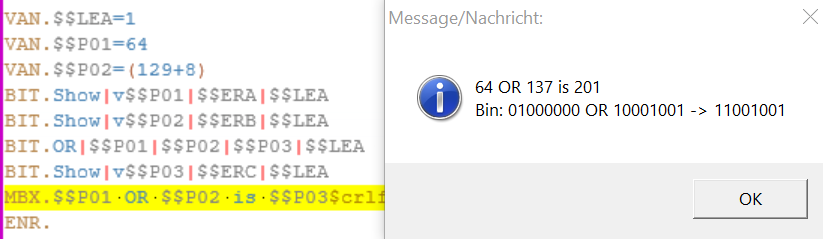
VAN.$$LEA=1
VAN.$$P01=64
VAN.$$P02=(129+8)
BIT.Show|v$$P01|$$ERA|$$LEA
BIT.Show|v$$P02|$$ERB|$$LEA
BIT.OR|$$P01|$$P02|$$P03|$$LEA
BIT.Show|v$$P03|$$ERC|$$LEA
MBX.$$P01 OR $$P02 is $$P03$crlf$Bin: $$ERA OR $$ERB -> $$ERC
ENR.
Syntax
BIT.OR|[b/v]P1|[b/v]P2[|[b/v]P3][|P4]
Parameter Explanation
P1 - Variable containing a value or binary number. For example take the Number "9". It can be an ASC-Code "9" or the numeric number "9".
You can define this with a prefix of "v" for value and "b" for "binary". If the prefix is omitted, "v" is the default setting for P1.
P2 - Variable containing a value or binary number. For example take the Number "9". It can be an ASC-Code "9" or the numeric number "9".
You can define this with a prefix of "v" for value and "b" for "binary". If the prefix is omitted, "v" is the default setting for P2.
P3 - optional,Variable for result. You can define with a prefix of "v" for value and "b" for "binary" the format of the result. If the prefix is omitted the result will have the format of P1.
If the P3 is "-" then result is placed on the TOS.
P4 - optional, can be 1,2 or 4. Number of Bytes that are used internally. The number of Bits is the number of Bytes times 8.
1 - 8 Bits
2 - 16 Bits
4 - 32 Bits
Do not use the "8" Option. See Limitations below.
Example
'*****************************************************
' EXAMPLE 1:
'*****************************************************
VAN.$$LEA=1
VAN.$$P01=64
VAN.$$P02=(129+8)
BIT.Show|v$$P01|$$ERA|$$LEA
BIT.Show|v$$P02|$$ERB|$$LEA
BIT.OR|$$P01|$$P02|$$P03|$$LEA
BIT.Show|v$$P03|$$ERC|$$LEA
MBX.$$P01 OR $$P02 is $$P03$crlf$Bin: $$ERA OR $$ERB -> $$ERC
ENR.
Remarks
-
Limitations:
When using the "|8" Parameter, the lower 4 bits are possibly wrong. This is not a bug its due to the way variables are stored internally.
Therefore we recommend to not use this option.
See also:
•3.5 Hexadezimal, Decimal and Binary and more
•VTH. - Variable to Hexadecimal
•CAL. - mathematical CALculation
•VAR. - Variable Set Value/Clear
•! Smart Package Robot 's BIT. - Operations
•BIT.16to8 - Split 1 Word into 2 Bytes
•BIT.16to32 - concatenate 2 Words to 32 Bit DWord
•BIT.32to16 - Split 1 DWord into 2 Words
•BIT.8to16 - concatenate 2 Bytes to 16 Bit Word
•BIT.AND - Use logical AND with Bits
•BIT.LShift - Shift Bits to Left, insert 0
•BIT.NOT - Use logical NOT with Bits
•BIT.OR - Use logical OR with Bits
•BIT.RotateLeft - Rotate Bits Left
•BIT.RotateRight - Rotate Bits Right
•BIT.RShift - Shift Bits to Right, insert 0
•BIT.Show - Show Bits in Binary-Numbers
•BIT.Store - Set Bit to 1 or 0
•BIT.ToBin - change Parameter to Binary-Format
•BIT.ToVal - change Parameter to Value-Format
•BIT.XOR - Use logical XOR with Bits
•BIT.Get - check if Bit is set
• CAL. - mathematical CALculation
• VAR. - Variable Set Value/Clear